

Plug-Ins
Plug-Ins provide additional functionality to the core system of Boomack. A plug-in can provide:
See Plug-In on the concepts page for more details.
Overview ↑
This page lists all core and official plug-ins with its features and supported display options.
Text Transformations ↑
| ID | Plug-In | Description |
|---|---|---|
plain |
Text | Default renderer for plain text |
uppercase |
Text | Like plain, but converts the text into upper case |
lowercase |
Text | Like plain, but converts the text into lower case |
highlight |
Syntax Highlight | Syntax highlightig for source code with Prism |
commonmark |
Markdown | Conversion from Common Mark to HTML |
markdown |
Markdown | Default conversion from Markdown to HTML |
csv-table |
CSV | Converts delimited text into an HTML table |
vega |
Vega (Lite) Plot | Display a Vega visualization |
vega-lite |
Vega (Lite) Plot | Display a Vega Lite visualization |
mermaid |
Mermaid Chart | Displays Mermaid graphs |
leaflet |
Leaflet Map | Displays an OpenStreetMap with markers |
Renderers ↑
| ID | Plug-In | Description |
|---|---|---|
generic |
Generic | Provide your own HTML template for rendering a resource URL |
image |
Media | Default renderer for images |
audio |
Media | Default renderer for audio |
video |
Media | Default renderer for video |
pdf |
Renders a PDF page |
Action Types ↑
| ID | Plug-In | Description |
|---|---|---|
shell |
Shell | Executes shell commands |
udp |
UDP | Sends an UDP v4 datagram |
udp6 |
UDP | Sends an UDP v6 datagram |
tcp |
TCP | Simple request and response exchange over TCP |
http |
HTTP | Calls an HTTP endpoint |
Generic ↑
Plug-In ID: core-generic
Renderer generic
↑
Rendering a HTML template by replacing the string {{ url }} with the resource URL.
Display Options
template
A HTML string with the placeholder{{ url }}for the resource URL.
Media ↑
Plug-In ID: core-media
Renderer image
↑
Render a simple <img /> tag with the URL in the src attribute.
The image renderer has no display options.
Renderer audio
↑
Render an <audio /> tag with the URL in the src attribute.
Display Options
mediaControls
A switch to (de)activate a user interface for media control. Default istrue.autoplay
A switch to start playback automatically. Default istrue.startpos
The position in seconds to start the playback.loop
A switch to play the audio in a loop. Default isfalse.
Renderer video
↑
Rendering a <video /> tag with the URL in the src attribute.
Display Options
mediaControls
A switch to (de)activate a user interface for media control. Default istrue.autoplay
A switch to start playback automatically. Default istrue.startpos
The position in seconds to start the playback.loop
A switch to play the video in a loop. Default isfalse.muted
A switch to deactivate audio playback. Default isfalse.
Media Types ↑
The plug-in does not actually provide any media types. But, it is hardcoded as fallback for the following media types:
image/*audio/*video/*
Text ↑
Plug-In ID: core-text
Text Transformation plain
↑
Converting preformatted plain text into HTML wich preserves the whitespace.
Display Options
textColor
A text colortextSize
A text size
Text Transformation uppercase
↑
Like plain, but converting to all upper case.
Display Options
textColor
A text colortextSize
A text size
Text Transformation lowercase
↑
Like plain, but converting to all lower case.
Display Options
textColor
A text colortextSize
A text size
The following text colors are supported:
red, orange, yellow, olive, green, teal, blue,
violet, purple, pink, brown, grey, black.
The actual color values are provided by the theme.
The following text sizes are supported:
mini, tiny, small, medium, large, big, huge.
Media Types ↑
The plug-in does not actually provide any media types. But, it is hard-coded as fallback for the following media types:
text/*
Syntax Highlight ↑
Plug-In ID: core-highlight
Text Transformation highlight
↑
The default transformation for syntax highlighting source code.
Display Options
syntax
The language to use for syntax highlighting. Required. All languages from Prism are supported.
Media Types ↑
The plug-in aims to provide a media type for every language, supported by Prism.
'text/x-arduino': 'arduino', // .ino
'text/x-apache-config': 'apacheconf', // .conf
'text/x-applescript': 'applescript', // .appelscript
'text/x-asciidoc': 'asciidoc', // .adoc, .asciidoc
'text/x-aspnet': 'aspnet', // .aspx
'text/x-autohotkey': 'autohotkey', // .ahk
'text/x-autoit': 'autoit', // .au3
'application/x-sh': 'sh', // .sh
'text/x-basic': 'basic', // .bas
'application/x-bat': 'batch', // .bat, .cmd
'text/x-csharp': 'csharp', // .cs
'text/x-edn': 'clojure', // .edn
'text/x-c': 'c', // .c, .h
'text/x-cpp': 'cpp', // .cpp, .hpp
'text/x-cxx': 'clike', // .cc, .cxx, .hxx, .hh
'text/x-clojure': 'clojure', // .clj, .cljc, .cljx, .cljs
'text/x-cmake': 'cmake', // CMakeLists.txt
'text/x-cobol': 'cobol', // .cob, .cbl
'text/x-coffeescript': 'coffeescript', // .coffee, .litcoffee
'text/css': 'css', // .css
'text/x-d': 'd', // .d
'text/x-dart': 'dart', // .dart
'text/x-diff': 'diff', // .diff
'text/dns': 'dns-zone-file', // .zone
'text/x-dockerfile': 'dockerfile', // Dockerfile
'text/x-graphviz': 'gv', // .dot
'text/x-editorconfig': 'editorconfig', // ^.editorconfig
'text/x-ejs': 'ejs', // .ejs
'text/x-elixir': 'elixir', // .exs
'text/x-elm': 'elm', // .elm
'text/x-erb': 'erb', // .erb
'text/x-erlang': 'erlang', // .erl
'text/x-fsharp': 'fsharp', // .fs
'text/x-fortran': 'fortran', // .f90, .f95, .f03
'text/x-gcode': 'gcode', // .gcode
'text/x-gettext': 'gettext', // .po
'text/x-glsl': 'glsl', // .glsl
'text/x-go': 'go', // .go
'text/x-go-module': 'go-module', // go.mod
'text/x-gradle': 'gradle', // .gradle
'text/x-groovy': 'groovy', // .groovy
'text/x-haml': 'haml', // .haml
'text/x-handlebars': 'handlebars', // .hbs, .handlebars, .mustache
'text/x-haskell': 'haskell', // .hs
'text/x-hlsl': 'hlsl', // .hlsl
'text/x-ignorefile': 'ignore', // ^.gitignore, ^.npmignore, ^.hignore, ^.dockerignore
'text/x-ini': 'ini', // .ini
'text/x-j': 'j', // .j
'text/x-java': 'java', // .java
'text/javascript': 'js', // .js
'application/javascript': 'js',
'text/x-jinja2': 'jinja2', // .jinja2, .j2
'text/json': 'json',
'application/json': 'json', // .json
'text/json5': 'json5',
'text/x-json5': 'json5', // .json5
'application/json5': 'json5',
'application/x-json5': 'json5',
'text/jsonp': 'jsonp',
'text/x-jsonp': 'jsonp', // .jsonp
'application/jsonp': 'jsonp',
'application/x-jsonp': 'jsonp',
'text/x-julia': 'julia', // .jl
'text/x-kotlin': 'kotlin', // .kt, .kts
'text/x-tex': 'tex', // .tex
'text/x-less': 'less', // .less
'text/x-lisp': 'lisp', // .lsp
'text/x-lua': 'lua', // .lua
'text/x-makefile': 'makefile', // makefile
'application/x-makefile': 'makefile',
'text/x-matlab': 'matlab', // .m
'text/x-objectivec': 'objectivec', // .m
'text/x-pascal': 'pascal', // .pas
'text/x-perl': 'perl', // .pl
'text/x-php': 'php', // .php, .php4, .php5, .php7
'text/x-plantuml': 'plantuml', // .plantuml, .puml
'text/x-powershell': 'powershell', // .ps1, .ps1m
'text/x-prolog': 'prolog',
'text/x-java-properties': 'properties', // .properties
'text/x-proto': 'protobuf', // .proto
'text/x-python': 'python', // .py
'text/x-qsharp': 'qsharp', // .qs
'text/x-qml': 'qml', // .qml
'text/x-r': 'r', // .r
'text/x-racket': 'rkt', // .rkt
'text/x-razor': 'razor', // .cshtml
'text/x-jsx': 'jsx', // .jsx
'text/x-tsx': 'tsx', // .tsx
'text/x-restuctured-text': 'rest', // .rst
'text/x-ruby': 'ruby', // .rb
'text/x-rust': 'rust', // .rs
'text/x-sass': 'sass', // .sass
'text/x-scss': 'scss', // .scss
'text/x-scala': 'scala', // .scala
'text/x-scheme': 'scheme', // .scm
'text/x-smalltalk': 'smalltalk', // .st
'text/x-ms-vs-solution-file': 'solution-file', // .sln
'text/x-sparql': 'sparql', // .rq
'text/x-sql': 'sql', // .sql
'text/x-swift': 'swift', // .swift
'text/x-t4': 't4', // .t4
'text/x-tcl': 'tcl', // .tcl
'text/toml': 'toml',
'text/x-toml': 'toml', // .toml
'application/toml': 'toml',
'application/x-toml': 'toml',
'text/typescript': 'typescript',
'text/x-typescript': 'typescript', // .ts
'application/typescript': 'typescript',
'application/x-typescript': 'typescript',
'text/x-verilog': 'verilog', // .v, .sv, .svh
'text/x-vhdl': 'vhdl', // .vhdl
'text/x-visual-basic': 'vb', // .vb, .vba
'text/x-wasm': 'wasm', // .wasm
'text/xml': 'xml',  // .xml
'application/xml': 'xml',
'text/yaml': 'yaml',
'text/x-yaml': 'yaml', // .yaml, .yml
'application/yaml': 'yaml',
'application/x-yaml': 'yaml',
Markdown ↑
Plug-In ID: core-markdown
Text Transformation commonmark
↑
Converting Markdown (Commonmark dialect), into HTML — Using Commonmark, the reference implementation, for rendering the HTML.
The text transformation commonmark has no display options.
Text Transformation markdown
↑
Transforming Markdown with some extras, into HTML.
Using the Markdown it! library for rendering the HTML, and the Prism library for syntax highlighting in fenced code blocks.
Display Options
allowHtml
trueif HTML tags should be included unescaped in the output. Defaults totrue.breaks
trueif simple line breaks in the source should be rendered as line breaks in the output. Defaults tofalse.linkify
trueif link-like text should be automatically converted into links. Defaults tofalse.typographer
trueif some typographic features should be applied. (asymmetric quotes, tripple dots, …) Defaults totrue.quotes
Pairs of asymmetric quotes for double quotes and single quotes. Defaults to“”‘’.
Alternatives are:«»‹›or„‟‚‛.
Media Types ↑
The plug-in provides the following media types:
text/markdown
CSV ↑
Plug-In ID: core-csv
Text Transformation csv-table
↑
Transform delimited text — CSV, TSV, etc. — into an HTML table.
Display Options
columns
A boolean or an array. If a boolean, activates or deactivates taking column names from the first row. If an array, provides the column names as strings. Defaults totrue.fromLine
The line number with the first record to read, starting with 1. Defaults to 2.toLine
The line number with the last record to read, starting with 1. Default tonull.fromRecord
The first record to render, starting with 1. Defaults to 1.toRecord
The last record to render, starting with 1. Defaults tonull.skipEmptyLines
Iftrueignores lines containing nothing or only whitespace. Defaults tofalse.comment
A character to interpret as the beginning of a comment line. Use empty sting to deactivate comments. Defaults to#.recordDelimiter
A string, separating records. Defaults to automatic line ending detection.delimiter
A character separating the fields in a record. Defaults to,.quote
A character for quoting field values. Use an empty string ornullto deactivate quoting. Defaults to".escape
A character to escape quotes inside a field. Defaults to".compact
trueif the table should have a more compact layout. Defaults tofalse.sortable
trueif the table should be sortable by clicking on the head row. Defaults tofalse.striped
trueif the rows of the table should have alternating colors. Defaults tofalse.
Media Types ↑
The plug-in provides the following media types:
text/csvtext/tsv
Shell ↑
Plug-In ID: core-shell
Action Type shell
↑
Run a shell command or executable on the server.
Configuration
command
Shell command or path to executable; default:undefinedargs
Array with command line arguments; default:[]payload
“discard”, “args”, “stdin”, or “command”; default: “discard”cwd
A path to the working directory; default: working dir of serverenv
An object with environment variables; default:{}pathPrefix
An array with paths to prepend to PATH environment variable; default[]pathSuffix
An array with paths to append to PATH environment variable; default[]shell
true,false, or an absolute path to shell executable; default:true
If the payload property is set to “args”,
the payload of the action call is expected to be an array.
If it is not an array but null or undefined, it is treated as an empty array.
If it is neither an array nor null or undefined, it is wrapped inside an array with one cell.
Then, empty cells in the args array are completed with items from payload.
Meaning, every null or undefined cell from the args array will be filled
with the next value from the payload.
If the payload has more items, then the args array empty cells,
the remaining items from the payload are appended to the args array.
If the args array has more empty cells, then the payload has items,
they are filled with empty strings.
If the payload property is set to “stdin”,
the payload is written to the STDIN of the child process.
If the payload property is set to “command”,
the payload is used as command with whitespace-separated arguments, and executed in a shell.
In this case the command property is ignored, and shell=false is ignored too.
If the payload property is set to anything else,
the payload is discarded.
Result
A JSON map with the following properties:
status
The exit status of the executed process, orundefinedif the process was terminated by a signalsignal
A signal as a string, orundefinedif the process was not terminated by a signalstdout
The STDOUT text of the process as stringstderr
The STDERR text of the process as string
Example
Given an action with the following definition:
type: shell
command: magick
args: ['my-image.png', '-resize', null, '-quality', null, 'result.jpg']
payload: args
{
  "type": "shell",
  "command": "magick",
  "args": [ "my-image.png", "-resize", null, "-quality", null, "result.jpg" ],
  "payload": "args"
}
And the following action input:
["720x480", "92"]
The executed command will look like:
magick my-image.png -resize 720x480 -quality 92 result.jpg
UDP ↑
Plug-In ID: core-udp
Action Type udp
↑
Sends an UDP v4 datagram.
Configuration
address
The domain name or IP address; default: “localhost”port
The destination port; requiredpayload
A constant message to send; default:undefinedbase64
trueorfalse; default:false
Action Type udp6
↑
Sends an UDP v6 datagram.
Configuration
address
The domain name or IP address; default: “localhost”port
The destination port; requiredpayload
A constant message to send; default:undefinedbase64
trueorfalse; default:false
For both UDP action types, the following rules apply to the properties:
- If the
payloadproperty is set to something other thenundefinedornull, the payload of the action call is discarded and the content of thepayloadproperty is used as payload. - If the payload is a string, it is either encoded with UTF-8
or decoded from BASE64, depending on the value of
base64. - If the payload is a typed array
UInt8Array, its content is sent without change. - Every other payload will be serialized with JSON and encoded with UTF-8.
TCP ↑
Plug-In ID: core-tcp
Action Type tcp
↑
Opens a TCP connection, sends a request, receives a response, and closes the connection.
Configuration
host: The destination domain name or IP address; default: “localhost”port: The destination port; requiredlocalAddress: A local IP address the net socket should connect from; default:undefinedlocalPort: A local port the net socket should connect from; default:undefinedfamily: The version of IP stack:4,6, or0for both; default:0timeout: The timeout for idle time on the net socket in milliseconds;nullor0deactivates the timeout; default: 10000.request: A constant message to send as request; default:undefinedbase64:trueorfalse; default:falseresponseLimit: The maximum number of bytes to accept in the response;nullor0deactivates the limit; default: 1024102432discardResponse:trueorfalse; default:false
The following rules apply to the properties:
- If the
requestproperty is set to something other thenundefinedornull, the request of the action call is discarded and the content of therequestproperty is used as request. - If the request is a string, it is either encoded with UTF-8
or decoded from BASE64, depending on the value of
base64. - If the request is a typed array
UInt8Array, its content is sent without change. - Every other request will be serialized with JSON and encoded with UTF-8.
Result
An UInt8Array with the response data.
HTTP ↑
Plug-In ID: core-http
Action Type http
↑
Calls an HTTP endpoint.
Configuration
prefixUrl
A string to prepend to the URL; default:undefinedurl
The URL to send the request to; default:undefinedsearchParams
An object with search or query parameters; default:{}allowSearchParamsFromPayload
trueorfalse; default:falsemethod
The HTTP method; default: “GET”headers
An object with header fields. By default the headers contain the following fields:Accept=application/json, text/*;q=0.9Content-Type=text/plainif payload is string,application/octet-streamif payload isUInt8Arrayor BASE64 encoded data,application/jsonotherwise.
allowHeadersFromPayload
trueorfalse; default:falsebody
A constant body to post; default:undefinedbase64
trueorfalse; default:falsetimeout
The timeout in milliseconds; default: 10000discardResponseBody
trueorfalse; default:false
Input
As payload of an action call, a map with the following properties is expected:
url
Optional URL to join with theprefixUrlfrom the action configuration. Is ignored ifurlin the action configuration is set.searchParams
Optional search parameters, overriding the search parameters from the action configuration. Is ignored, ifallowSearchParamsFromPayloadis set tofalse.headers
Optional headers, overriding the headers from the action configuration. Is ignored, ifallowHeadersFromPayloadis set tofalse.body
Optional body to post with the request. Can be a string for UTF-8 encoded text, a BASE64 encoded data string or anUInt8Arrayfor binary data, or anything else for a JSON and UTF-8 encoded value or object.base64trueorfalse; default:false.
Output
The response to an action call is a map with the following properties:
ok
trueorfalse, indicating a success status code.statusCode
The HTTP status code of the response.body
The parsed response body.
Vega (Lite) Plot ↑
PlugIn ID: vega
Installation ↑
If your using the Windows MSI installer for Boomack, this plug-in is installed by default. You can however, deselect it in the setup dialog during the installation.
The Docker image also contains this plug-in.
If you are using npm for installation, you can install this plug-in with:
npm i -g boomack-plugin-vega
Text Transformation vega
↑
Generate HTML with a Vega visualization.
Input
The input is expected to be valid JSON or YAML. It is interpreted as a Vega specification to render.
Display Options
vega.padding
Sets the view padding in pixels. See Vega docs for details.vega.width
Sets the view width in pixels. See Vega docs for details. Note that Vega-Lite overrides this option.vega.height
Sets the view height in pixels. See Vega docs for details. Note that Vega-Lite overrides this option.vega.renderer
The renderer to use for the view. One of “canvas” (default) or “svg”. See Vega docs for details.vega.hover
A boolean or an object. Enable hover event processing. Hover event processing is enabled on Vega by default.
Boolean: Enables/disables hover event processing.
Object: Optional keys (hoverSet,updateSet) to specify which named encoding sets to invoke upon mouseover and mouseout.
Text Transformation vega-lite
↑
Generate HTML with a Vega Lite visualization.
Input
The input is expected to be valid JSON or YAML. It is interpreted as a Vega Lite specification to render.
Display Options
vega.padding
Sets the view padding in pixels. See Vega docs for details.vega.zoomFit
A switch to fit the visualization to the slot size. Defaults totrue.vega.renderer
The renderer to use for the view. One of “canvas” (default) or “svg”. See Vega docs for details.vega.hover
A boolean or an object. Enable hover event processing. Hover event processing is enabled on Vega by default.
Boolean: Enables/disables hover event processing.
Object: Optional keys (hoverSet,updateSet) to specify which named encoding sets to invoke upon mouseover and mouseout.
Renderer vega
↑
Generate HTML with a Vega visualization.
Takes the Vega specification from display option vega.spec
and inserts the resource URL in every data.[*].url with is null.
Input
The input is expected to be a data format, supported by Vega.
In Vega 5 json, csv, tsv, dsv, and topojson are supported.
The data format must be specified in the Vega specification in data.[*].format.type.
Display Options
vega.padding
Sets the view padding in pixels. See Vega docs for details.vega.width
Sets the view width in pixels. See Vega docs for details. Note that Vega-Lite overrides this option.vega.height
Sets the view height in pixels. See Vega docs for details. Note that Vega-Lite overrides this option.vega.renderer
The renderer to use for the view. One of “canvas” (default) or “svg”. See Vega docs for details.vega.hover
A boolean or an object. Enable hover event processing. Hover event processing is enabled on Vega by default.
Boolean: Enables/disables hover event processing.
Object: Optional keys (hoverSet,updateSet) to specify which named encoding sets to invoke upon mouseover and mouseout.vega.spec
An object which is interpreted as a Vega specification to render. It should have at least one item in thedataarray with the propertyurlset tonullas placeholder for the resource URL.
Renderer vega-lite
↑
Generate HTML with a Vega Lite visualization.
Taking the Vega Lite specification from display option vega.spec
and inserting the resource URL in data.url.
Input
The input is expected to be a data format, supported by Vega Lite.
In Vega Lite 5 json, csv, tsv, and dsv are supported.
The data format must be specified in the Vega Lite specification in data.format.type.
Display Options
vega.padding
Sets the view padding in pixels. See Vega docs for details.vega.zoomFit
A switch to fit the visualization to the slot size. Defaults totrue.vega.renderer
The renderer to use for the view. One of “canvas” (default) or “svg”. See Vega docs for details.vega.hover
A boolean or an object. Enable hover event processing. Hover event processing is enabled on Vega by default.
Boolean: Enables/disables hover event processing.
Object: Optional keys (hoverSet,updateSet) to specify which named encoding sets to invoke upon mouseover and mouseout.vega.spec
An object which is interpreted as a Vega Lite specification to render. It should have an object in thedataproperty with theurlset tonull.
Media Types ↑
The plug-in provides the following media types:
application/x-vega-specapplication/x-vega-lite-spec
Mermaid Chart ↑
Plug-In ID: mermaid
Installation ↑
If your using the Windows MSI installer for Boomack, this plug-in is installed by default. You can however, deselect it in the setup dialog during the installation.
The Docker image also contains this plug-in.
If you are using npm for installation, you can install this plug-in with:
npm i -g boomack-plugin-mermaid
Text Transformation mermaid
↑
Generates HTML with a Mermaid diagram or chart.
Input
The input is expected to be the code for a Mermaid diagram.
Display Options
The text transformation mermaid has no display options.
Media Types ↑
text/x-mermaid
Leaflet Map ↑
Plug-In ID: leaflet
Installation ↑
If your using the Windows MSI installer for Boomack, this plug-in is installed by default. You can however, deselect it in the setup dialog during the installation.
The Docker image also contains this plug-in.
If you are using npm for installation, you can install this plug-in with:
npm i -g boomack-plugin-leaflet
Text Transformation leaflet
↑
Render a geographic map with markers, using the JavaScript library Leaflet. The default map source is OpenStreetMap.
Input
The input is expected to be a valid JSON or YAML map. The input map is merged with the map from the display options and interpreted in the way described below.
The properties from the input take precedence over the properties from the display options.
Display Options
leaflet
A map, which is merged with the input and interpreted in the way described below.
Specification
The merged map from the input and the display options supports the following properties:
width
The width of the viewport in CSS compatible units. Defaults to “100%”.height
The height of the viewport in CSS compatible units. Defaults to “100%”.attribution
An HTML fragment to be displayed at the bottom of the map. Defaults to© <a href="https://www.openstreetmap.org/copyright">OpenStreetMap</a> contributors.tileServerUrl
A template for the URL for loading map tiles. Defaults tohttps://{s}.tile.openstreetmap.org/{z}/{x}/{y}.png.tileSize
Default tonull.accessToken
An access token to transmit when requesting tiles. Intended for commercial tile servers. Defaults tonull.minZoom
The minimal allowed zoom level: 1 – 20. Defaults tonull.maxZoom
The maximal allowed zoom level: 1 – 20. Defaults tonull.maxBounds
A region to limit the view to. Described by a pair of two geo coordinates as diagonal corners of a rectangular region.bounds
The initial region to display in the view. Described by a pair of two geo coordinates as diagonal corners of a rectangular region.zoom
The initial zoom level: 1 – 20. Defaults tonull.center
The center of the initially visible region in the viewport. Defaults tolatandlon, ornull.lat
The latitude of a single point marker without any additional properties, and potentially the center of the initially visible region. Defaults tonull.lon/lng
The longitude of a single point marker without any additional properties, and potentially the center of the initially visible region. Defaults tonull.marker
One or multiple point markers. Defaults to[].lines
One or multiple line markers. Defaults to[].areas
One or multiple area markers. Defaults to[].
You can use either bounds, or center in combination with zoom.
Geo Position
A geo position is encoded with one of the following structures:
[ <lat>, <lon> ]{ lat: <lat>, lon: <lon> }{ lat: <lat>, lng: <lon> }
Point Marker
A point marker is a geo position, optionally with the following additional properties:
type
One of"icon"ornullfor a marker icon,"circle", or"rectangle". The short version"rect"is accepted also. Defaults tonull.width
The width of a rectangular marker in kilometers.height
The height of a rectangular marker in kilometers.title
A simple tool tip text to display, when hovering over the marker with the mouse cursor.popup
A HTML fragment for the content area of a pop-up. Which is displayed after clicking on the marker.
If type is set to "circle" all options of a
Leaflet Circle
are supported.
If type is set to "rectangle" all properties of a
Leaflet Polyline
are supported.
Line Marker
A line marker is either an array of geo positions, or a map with the following properties:
vertices
An array with geo positions.popup
A HTML fragment for the content area of a pop-up. Which is displayed after clicking on the marker.
Additionally all properties of a Leaflet Polyline are supported.
Area Marker
An area marker is either an array of geo positions, or a map with the following properties:
vertices
An array with geo positions.popup
A HTML fragment for the content area of a pop-up. Which is displayed after clicking on the marker.
Additionally all properties of a Leaflet Polygon are supported.
Minimal Example
To display just a map with a marker at a certain location, you can use the following Boomack CLI command:
Example
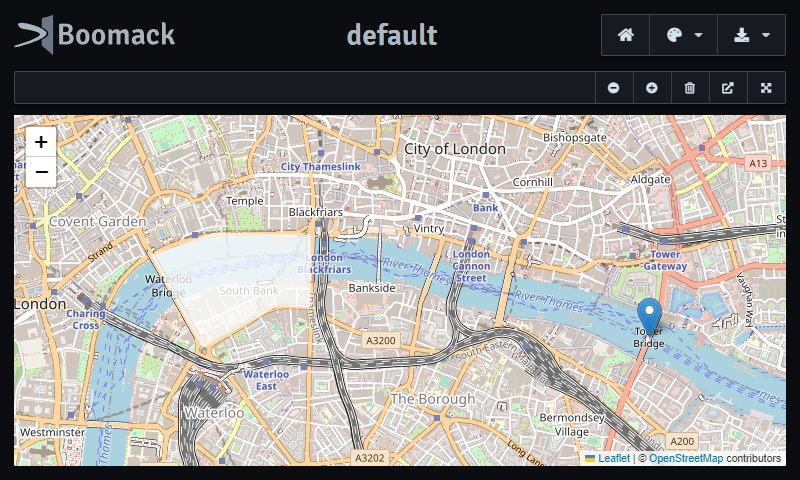
To prepare a view with a marked area and then display an additional point marker, you can use the following recipe.
display-options.yaml
leaflet:
  areas:
    - vertices:
        - [51.509921, -0.118124]
        - [51.511095, -0.112621]
        - [51.510988, -0.104382]
        - [51.50709, -0.104382]
        - [51.507196, -0.107219]
        - [51.504952, -0.113659]
      stroke: false
      color: white
      fillOpacity: 0.75
      popup: A section of the Thames
my-marker.yaml
marker:
  - lat: 51.50549
    lon: -0.07537
    title: The Tower Bridge
    popup:
      content: <img src="https://upload.wikimedia.org/wikipedia/commons/thumb/4/49/Tower_Bridge_dawn.jpg/450px-Tower_Bridge_dawn.jpg"/>
      minWidth: 320
With these two files in current working directory, you can run the following Boomack CLI command:
boom -t application/x-leaflet -f my-marker.yaml -o display-options.yaml
The result is a map with a part of the thames and the two markers in view.

Media Types ↑
The plug-in provides the following media types:
application/x-leaflet
PDF ↑
Plug-In ID: pdf
Installation ↑
If your using the Windows MSI installer for Boomack, this plug-in is installed by default. You can however, deselect it in the setup dialog during the installation.
The Docker image also contains this plug-in.
If you are using npm for installation, you can install this plug-in with:
npm i -g boomack-plugin-pdf
Renderer pdf
↑
Render a single PDF page from a PDF document, using the JavaScript library PDF.js.
Display Options
pageLabel
The label of the page to be displayed. Defaults tonull.pageNo
The numeric page number, starting with 1. Defaults tonull.
Takes precedence overpageLabel.scale
See Display Option on the concepts page for possible values. The value"auto"is interpreted as"scale-down".align
See Display Option on the concepts page for possible values.border
A boolean or the thickness in pixels of the border around the page. Defaults totrue.shadow
A switch to show or hide a shadow around the border. Default totrue.
pageNo and pageLabel are supported.Media Types ↑
The plug-in provides the following media types:
application/pdf
MQTT ↑
Plug-In ID: mqtt
Installation ↑
If your using the Windows MSI installer for Boomack, this plug-in is installed by default. You can however, deselect it in the setup dialog during the installation.
The Docker image also contains this plug-in.
If you are using npm for installation, you can install this plug-in with:
npm i -g boomack-plugin-mqtt
Action Type mqtt
↑
Sends an MQTT message.
Configuration
connectUrl
The URL of the MQTT broker; default:"mqtt://localhost:1883"username
The username for authentication; default:nullpassword
The password for authentication; default:nullconnectTimeout
The timeout for connection attempts in milliseconds; default: 30000reconnectPeriod
The time between reconnect attempts in milliseconds; default: 1000keepalive
The number of seconds between keep alive messages; default: 60topicPrefix
A string to put before the topic, when sending a message; default: empty stringtopic
A fixed topic to use for sending messages; default:null.
When set, a topic from the action call is ignored.message
Constant message data to sent with every action call; default:null.
When set, message data from the action call is ignored.base64
trueorfalse; default:false.
Indicates that a string inmessageis a BASE64 encoded byte array.qos
The quality of service level (0-2); default: 0
Can be overridden by the action call.retain
The retain flag for messagestrueorfalse; default:false.
Can be overridden by the action call.
Input
The payload of an action call is expected to be either an object with the following properties, a string, or a Buffer / UInt8Array.
topic
A topic string. Optional.message
A string or Buffer / UInt8Array or any other value.
Can be a string for UTF-8 encoded text, a BASE64 encoded data string or an Buffer / UInt8Array for binary data, or anything else for a JSON encoded value or object.base64
trueorfalse; default:false.
Indicates that a string inmessageis a BASE64 encoded byte array.qos
The quality of service level (0-2). Optional.retain
The retain flag for messagestrueorfalse. Optional.
If no topic is specified, neither by the action configuration, nor by the action call,
the topic boomack-plugin-mqtt is used.